
Adding a DNS to Your Monitoring Dashboard
Our guide teaches you how to monitor DNS records for accuracy and failures. Learn to set up checks for A, CNAME, MX records and get real-time alerts to prevent domain issues.
1 Go to Your Dashboard
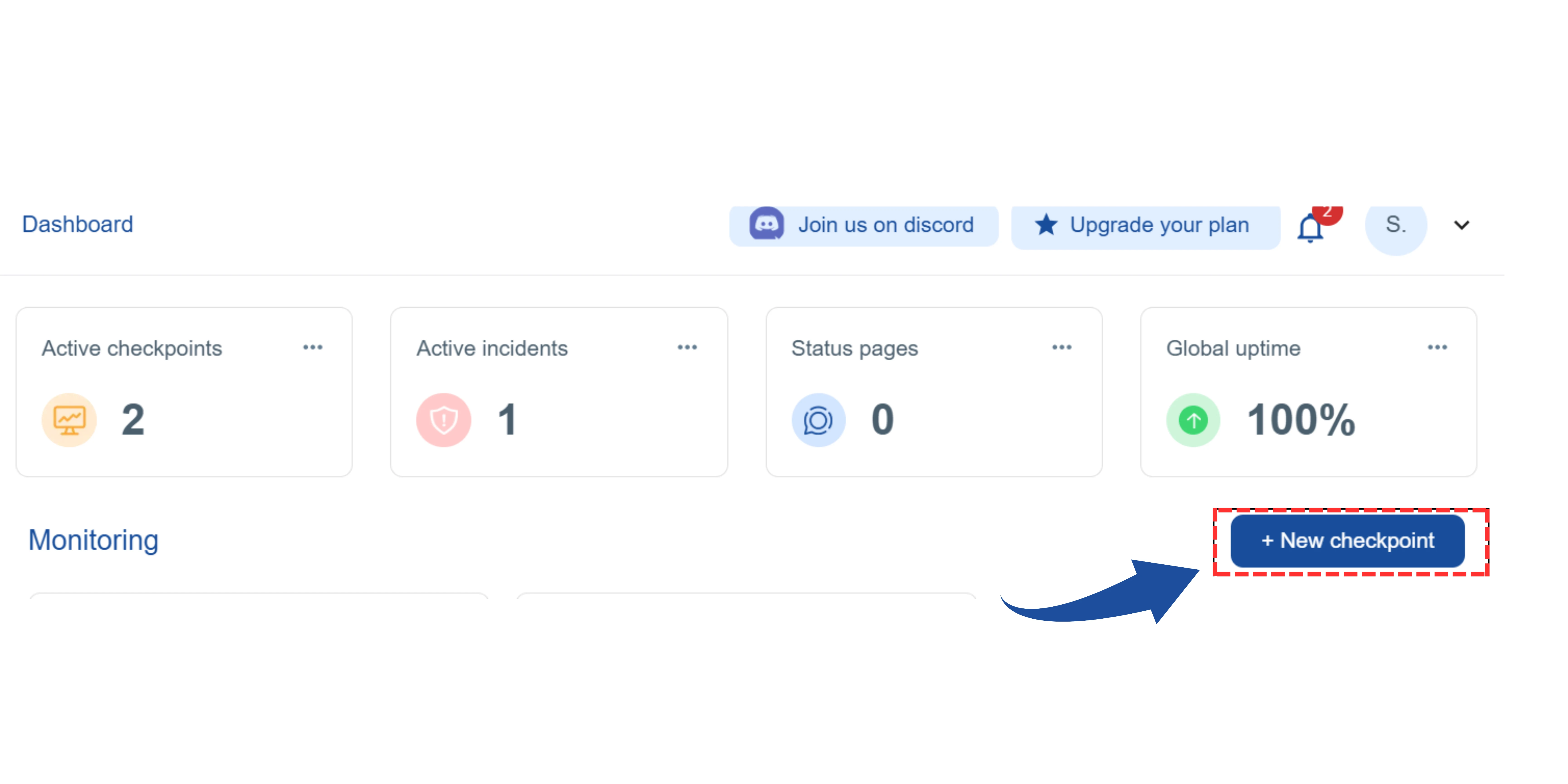
On your main dashboard, you will see the "New Checkpoint" button. Click on it.
2 Select the Checkpoint Type
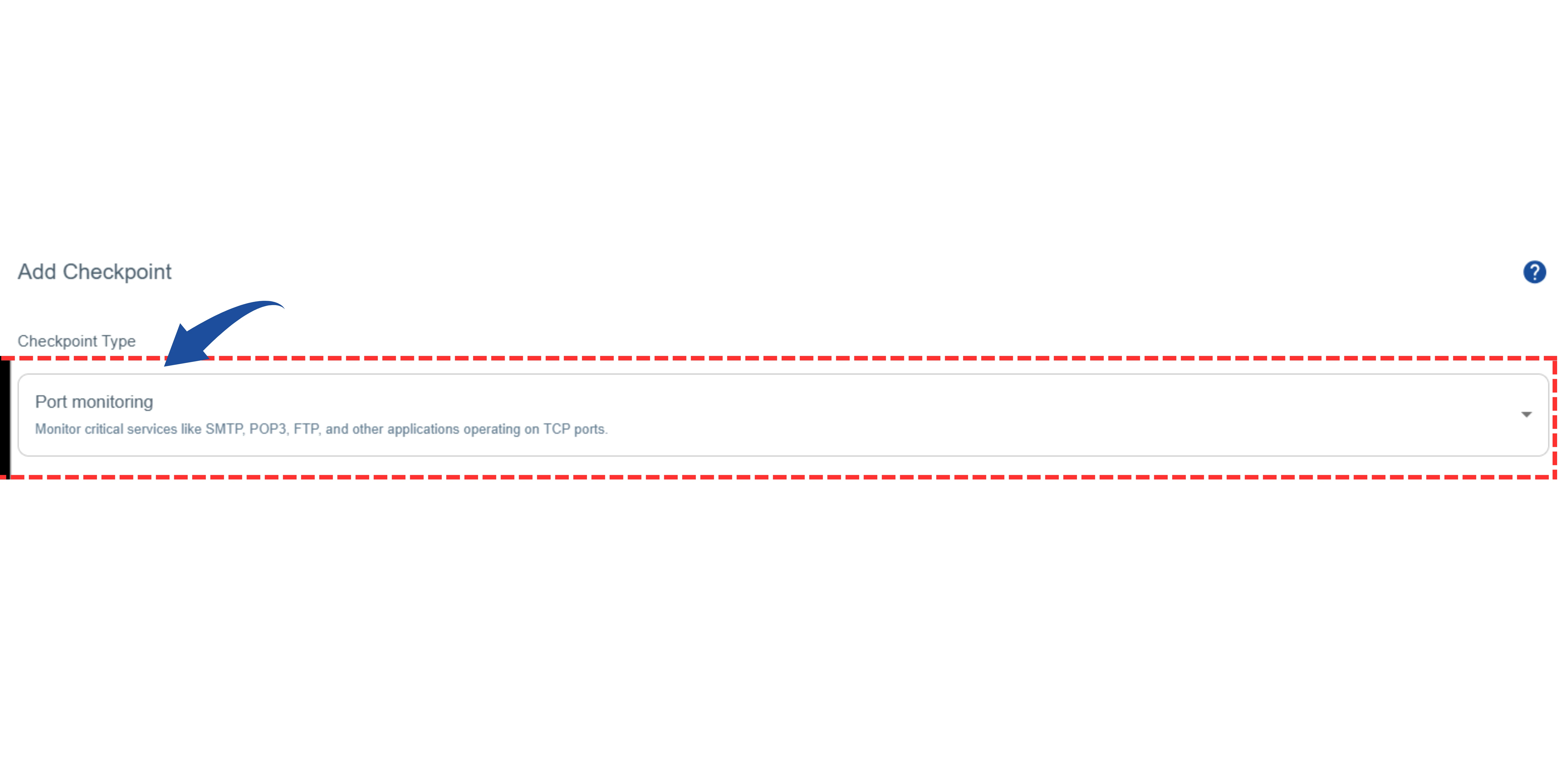
You will be redirected to the"Add Checkpoint" page.
Look for the "Checkpoint Type" option.
From the list, select "DNS Monitoring".
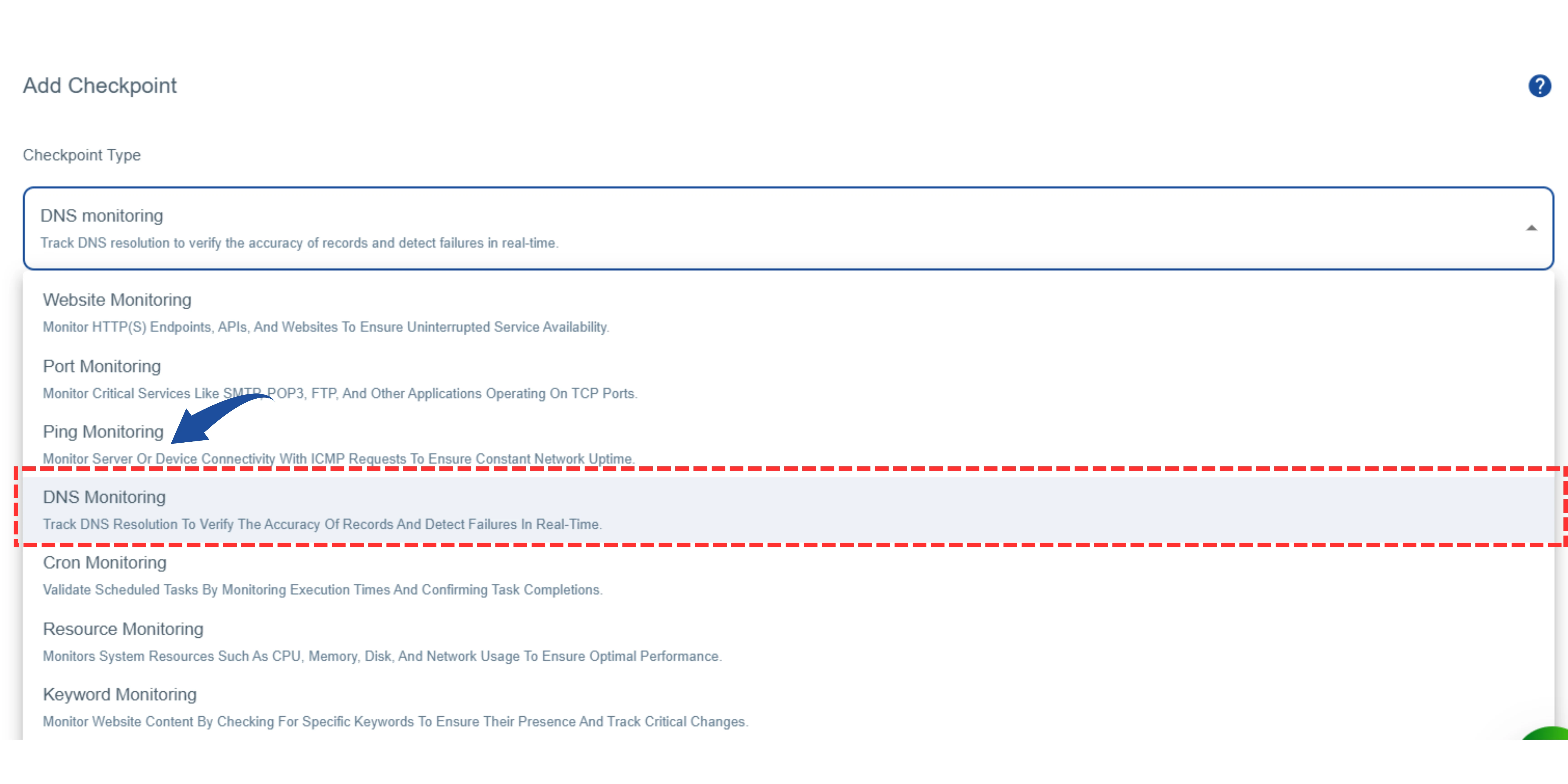
Under “Checkpoint Type”, select “DNS Monitoring”
Note: This tool also has other monitoring types like Port, Website, Keyword, etc., but for checking a website, you should choose "DNS Monitoring".
3 Name Your Monitor and Enter the Target
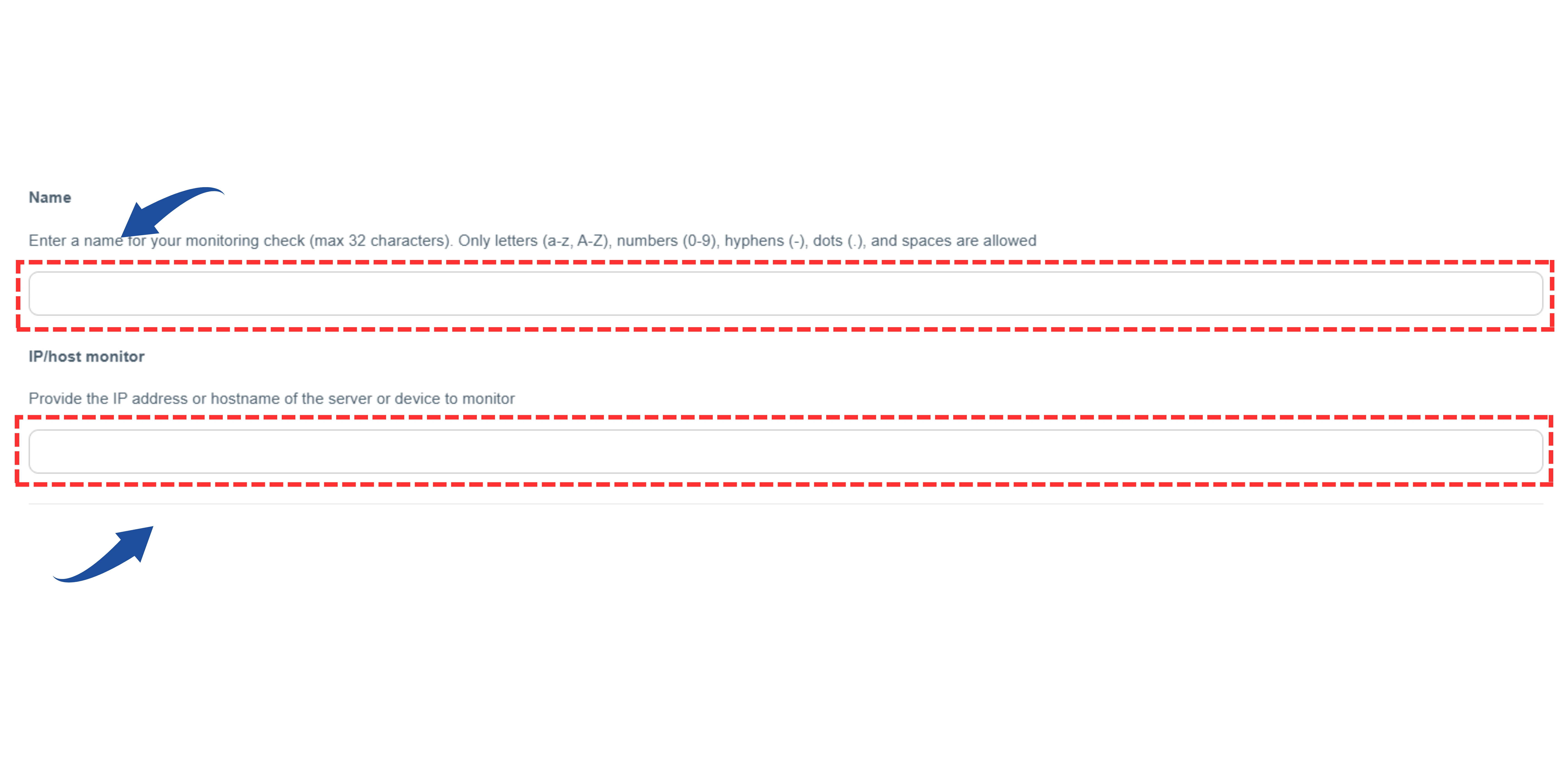
Name: Enter a recognizable name for your monitoring check (e.g., "Main Server DNS").
IP or host to monitor: Enter the IP address or hostname you want to monitor (e.g., example.com or 192.168.1.1).
4 Configure Monitoring Settings
Configure how and when you want to be notified.
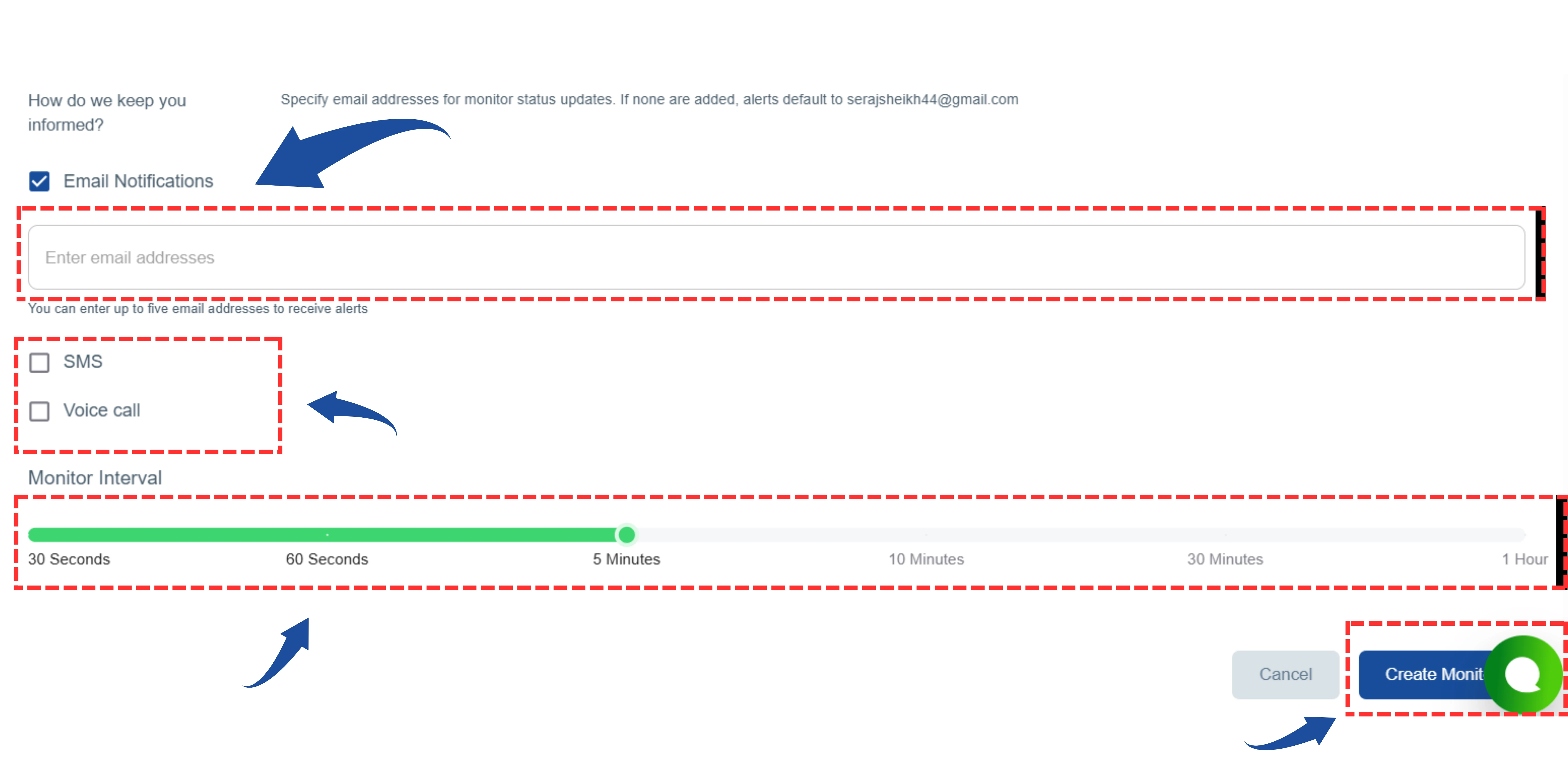
- Email Notifications: Enter the email addresses to receive alerts. If none are added, alerts will be sent to the default email address.
- Alert Types: Choose how you wish to be notified when a problem is detected:
- Monitor Interval: Select how frequently the system should check your target (e.g., 30 Seconds, 1 Hour, etc.).
5 Configure DNS Settings
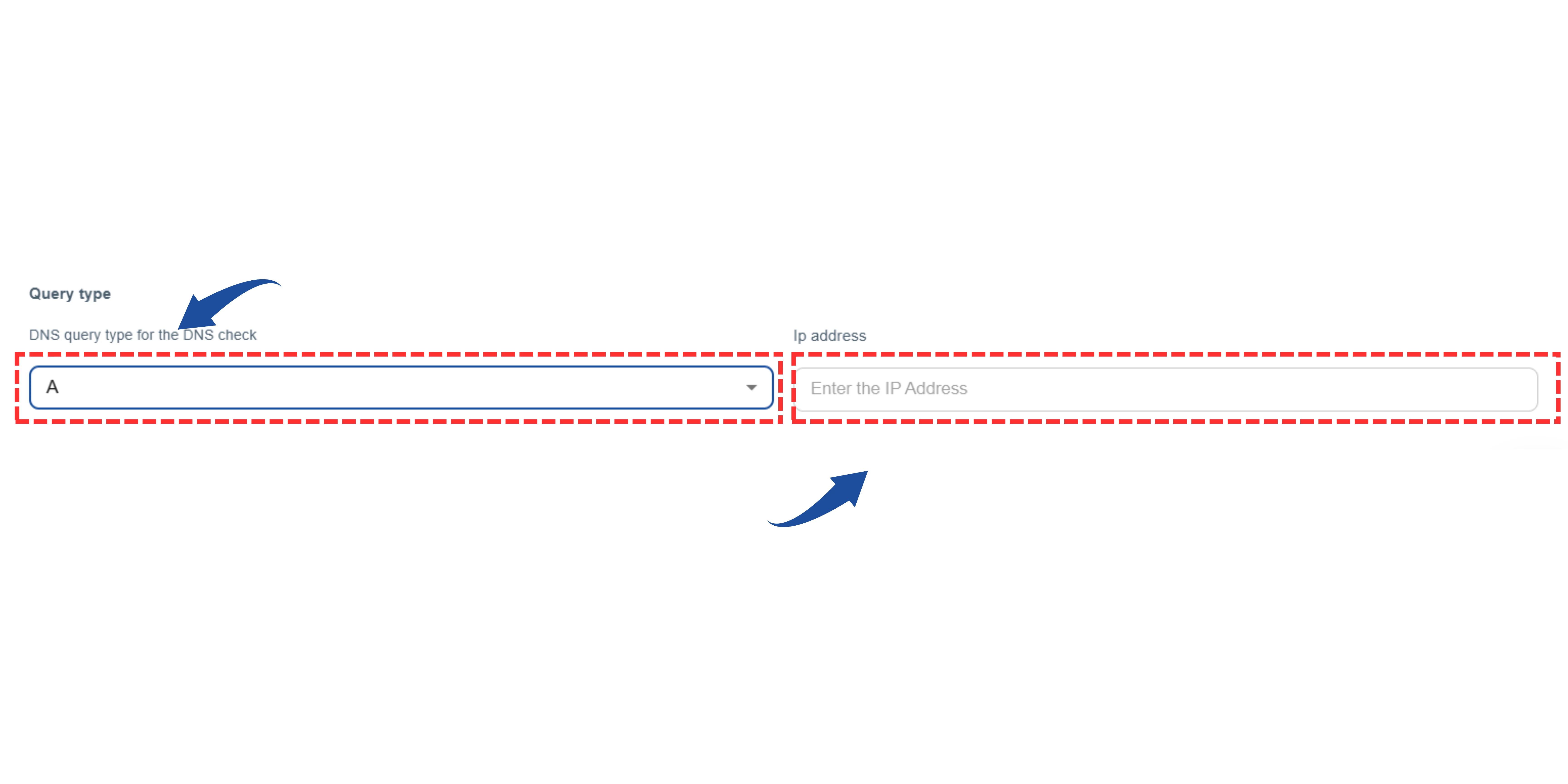
Query type
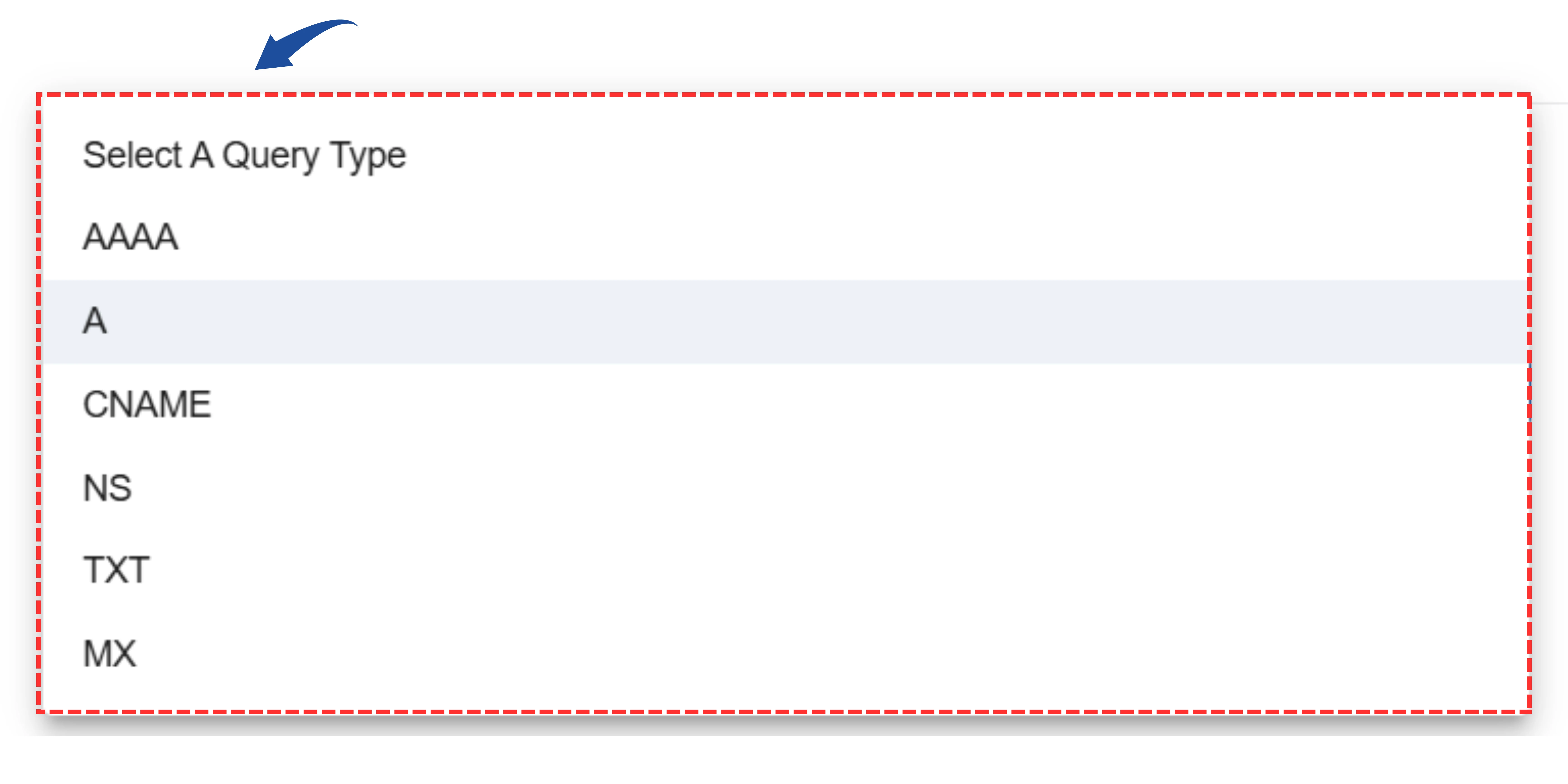
- Query type: Select the type of DNS record you want to check (e.g., A, AAAA, CNAME, MX, NS, TXT).
Ip Address
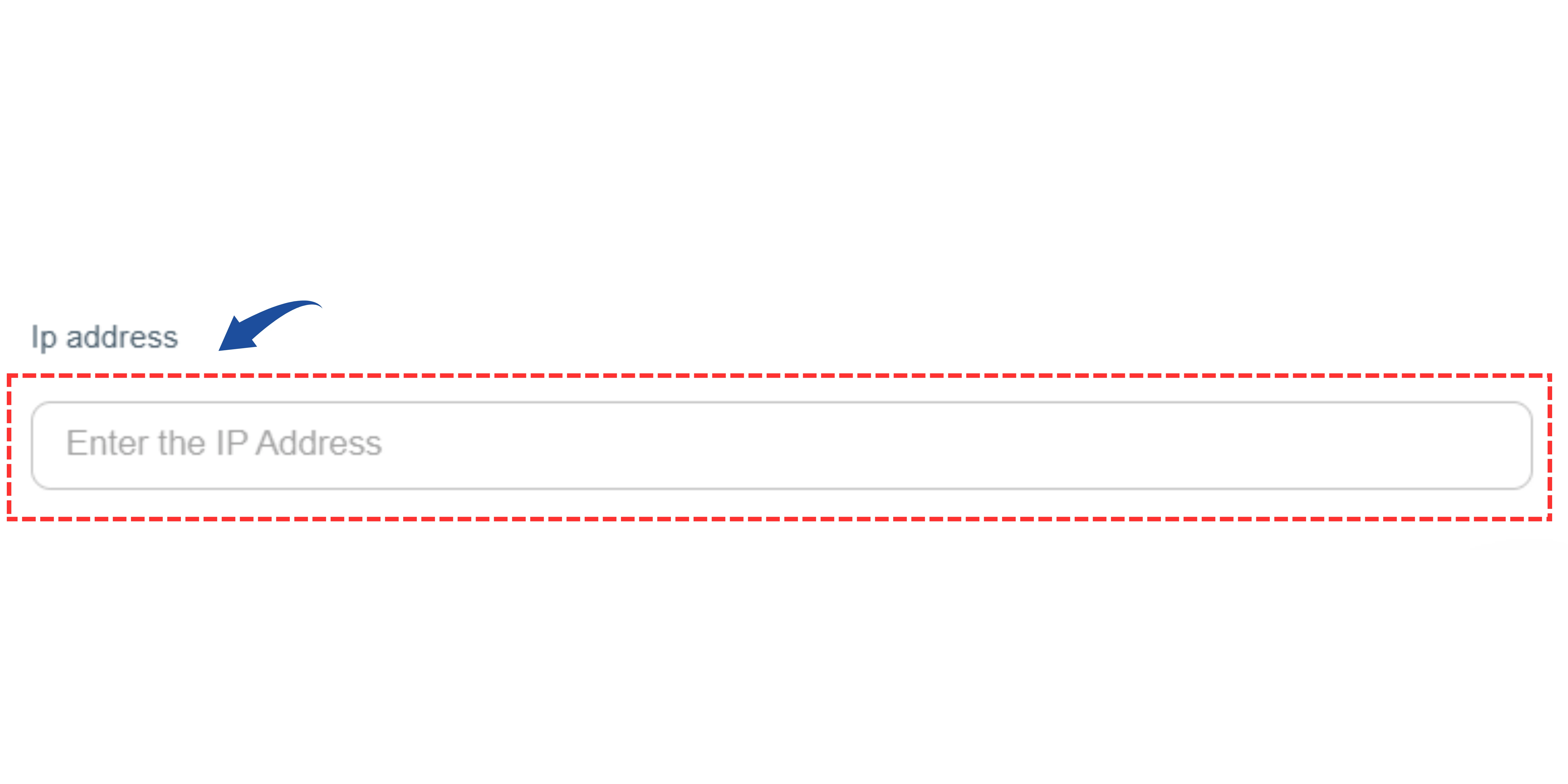
- IP Address: Enter the IP address for the check, if required.
6 Create The Monitor
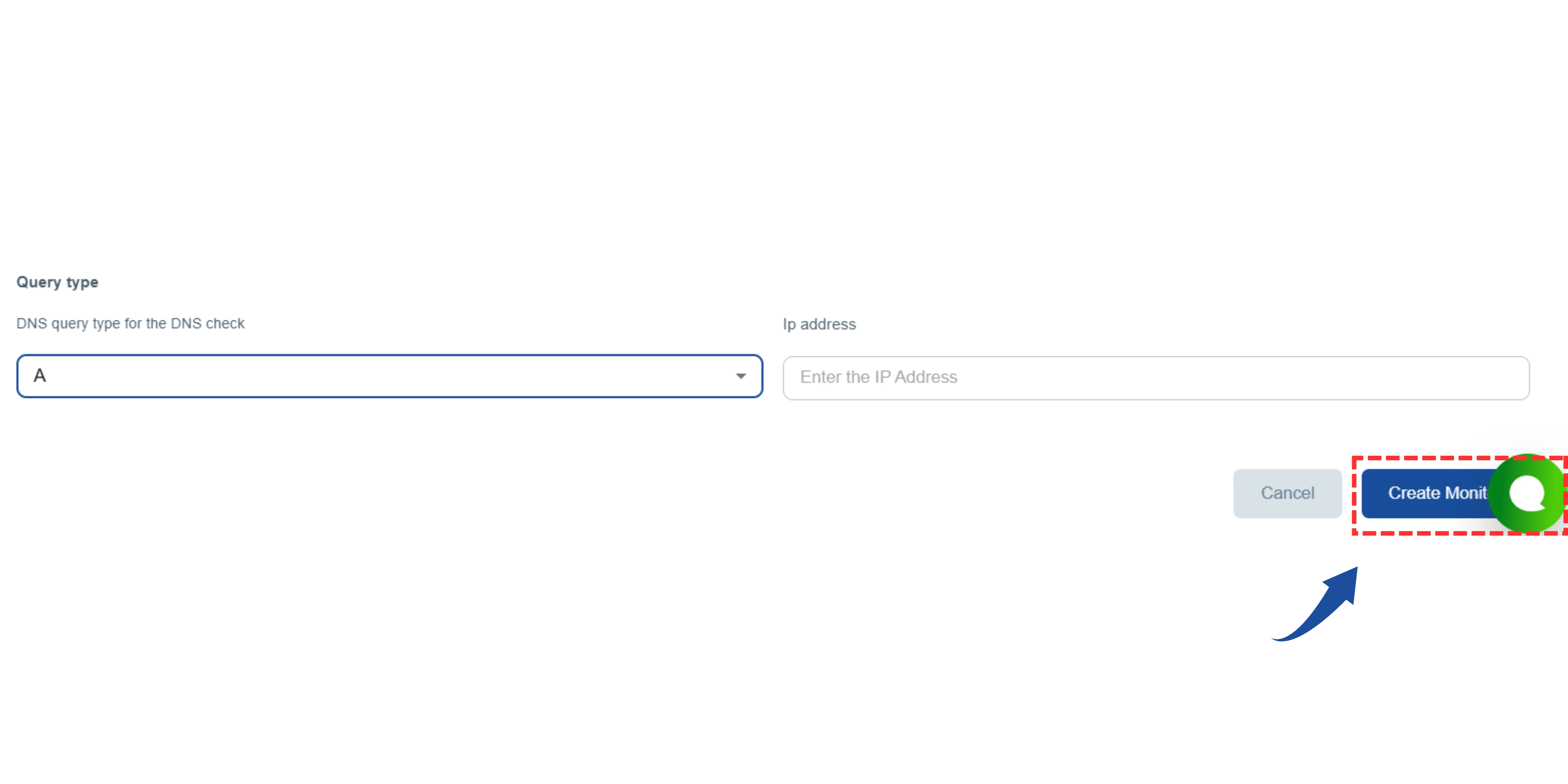
Click the "Create" or "Next" button to finalize and activate your monitor.